What is this?
This post is a comprehensive guide to all the formatting features available when composing posts on Discourse forums, including the use of the forum’s editor toolbar, Markdown, BBCode, and HTML.
This guide was put together using information from several sources adapted to match the capabilities of this forum. References can be found here.

Click to navigate to a specific section
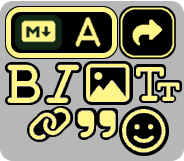
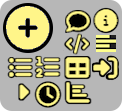
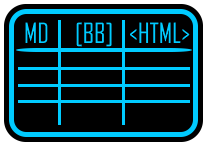
Formatting Options
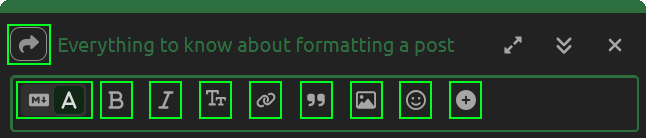
 Text Editor
Switches composer between plain text and rich text editors.
- Plain text editors refer to interfaces like the Notepad app on windows. It doesn’t store any structure or formatting information aside from raw characters and line breaks.
- The site provides a collapsible rendered preview of a post to the right of the composer on desktop and through a separate window on mobile (add photo)
- Rich text editors refer to interfaces like Microsoft Word. It stores both structure and formatting, so whatever is within the interface is what is rendered out.
 Change reply
Controls who/what your reply is directed to. Clicking it opens a dropdown menu with three possible choices:
Reply as linked topic
Use this to branch off into a separate topic without derailing the current one. Ideal for tangents or related side conversations.
Reply to a specific post by \[USER\]
Visible when replying to a topic AFTER trying to reply to a specific post within it. Selecting it switches your response to target that specific post.
Reply to topic
Visible when you’re replying to a specific post. Allows for switching to replying to the topic without clicking out of the composer window.
 Strong (Bold)
Wraps a highlighted selection in double asterisks.
This **makes words bold**. It can be ***combined with italics***.
This makes words bold. It can be combined with italics.
 Emphasis (Italics)
Wraps a highlighted selection in asterisks.
This *makes words italicized*. It can be ***combined with bold***.
This makes words italicized. It can be combined with bold.
 Headings
Within the plain text editor, headings can be added by starting a line with #. Subheadings can be added by adding more than one # at the beginning of a line, to a limit of 6.
# Heading 1
## Heading 2
### Heading 3
#### Heading 4
##### Heading 5
###### Heading 6
####### Heading 7
Within the rich text editor, headings can be added or removed using the toolbar option.
[Add GIF at some point]
 Hyperlink
Creates a clickable element that redirects the user to a different webpage.
[Example](https://example.com)
Example
 Blockquote
Inserts > at the beginning of every selected line
> Line 1
> Line 2
> Line 3
Line 1
Line 2
Line 3
Example: Nested blockquotes
> Line 1
>>Line 2
>>> *Line 3*
> > > > > > > > Line 4
>>> Line 5
Line 1
Line 2
Line 3
Line 4
Line 5
 Upload
Image upload from a user’s local files through File Explorer.
Alternatively, drag and drop a file into the composer window to upload.
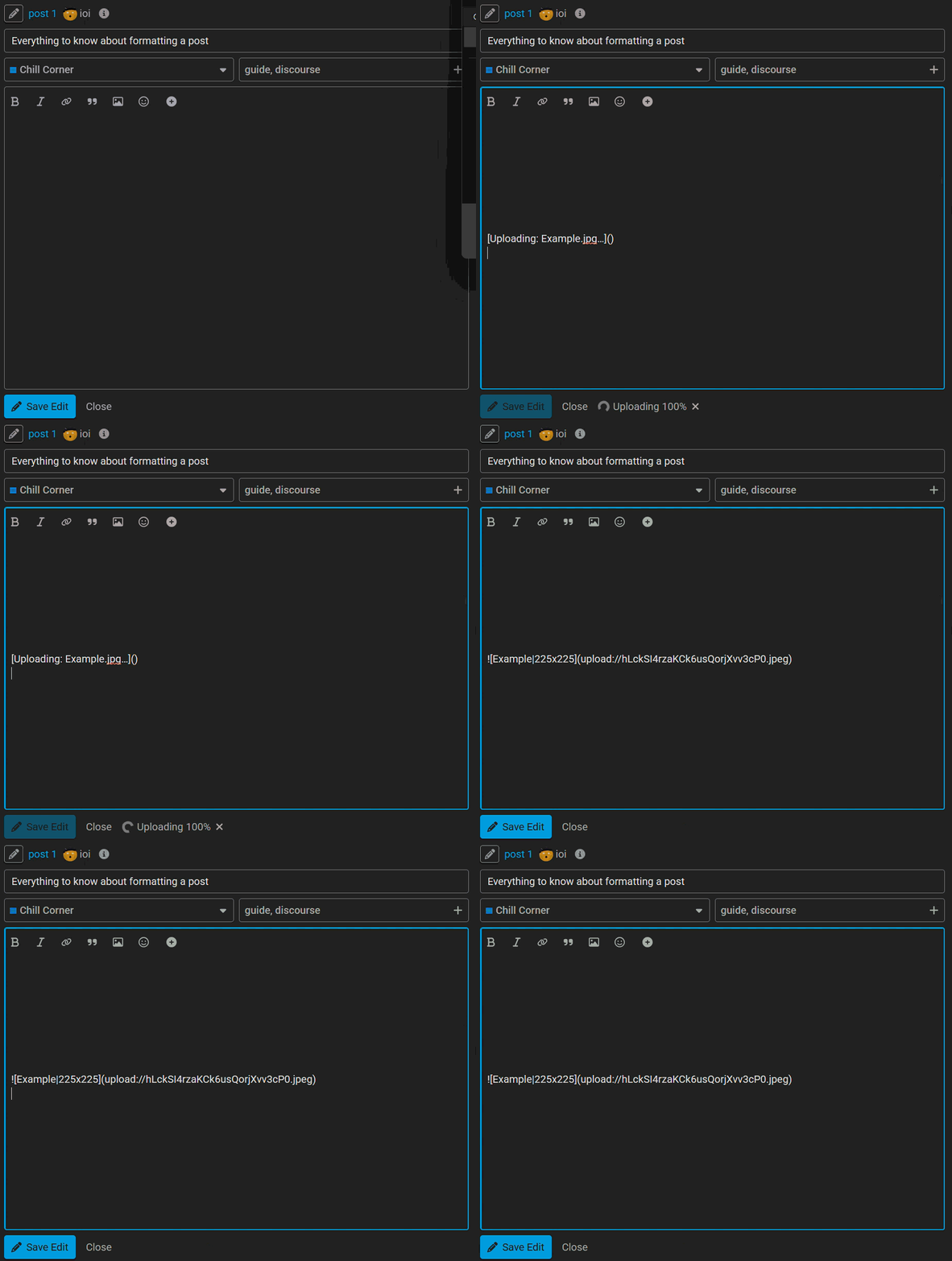
Progress is shown next to the “Send” or “Save Edit” button. In the composer window, a markdown image link is generated where the typing cursor is positioned.
[Processing: FileName.format...]()
[Uploading: FileName.format...]()

 Emoji
Emoji
Inserts an emoji where the typing cursor is positioned.
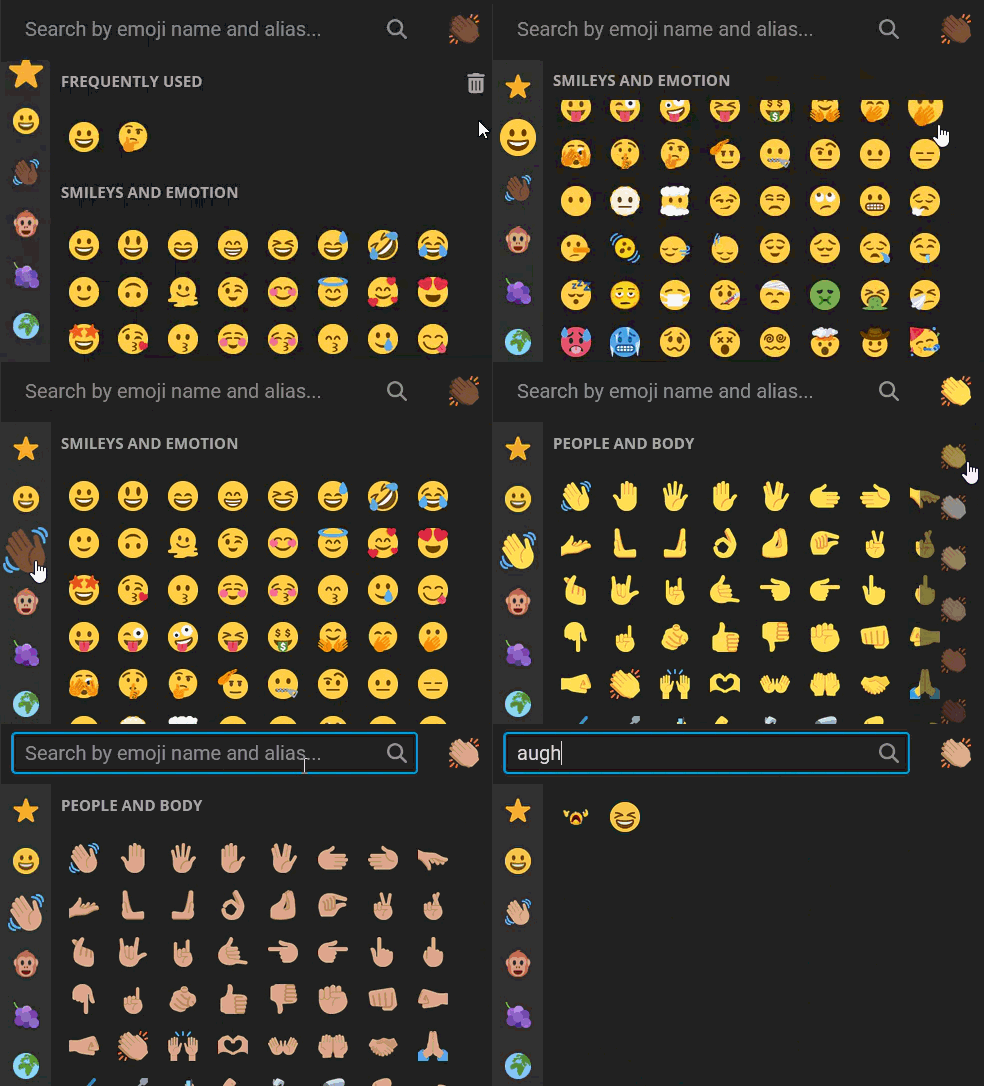
Menu is scrollable. Emojis are searchable and separated by sections. Certain emojis have color variants, click  to change.
Emotes unique to the forum: 


Emotes can be moused over to show their markdown syntax

 Quote whole post
Feature used for replying to posts. Quotes a replied-to post in its entirety.
 Insert date/time
This is a Discourse unique feature (see Date/Time syntax)
You can set the following options from the menu:
Date, Time
You can select a date using the calendar
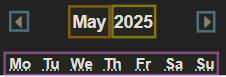
- Clicking the month opens a dropdown menu with all months of a year
- Clicking the year opens a dropdown menu with all the years ±10 of the current selected year
- Clicking the left arrow moves the calendar back by one month
- Clicking the right arrow moves the calendar forwards by one month
- Hovering over a week name displays its full name
Example:
2025-05-13T16:13:00Z
Time Interval
The second date option Until... is for setting a time interval.
Example:
2025-05-13T16:13:00Z→2025-05-20T04:00:00Z
Timezone
Timezone is defined using TZ identifiers.
 Advanced Options
Clicking the cog opens up the following options:
Recurrence
Can set whether the inserted time appears on specific dates after a certain time interval
Example:
Timezones to display
Defines displayed timezones when the element is clicked on
2025-05-10T04:00:00Z
Date format
Controls how the date is displayed to a user.
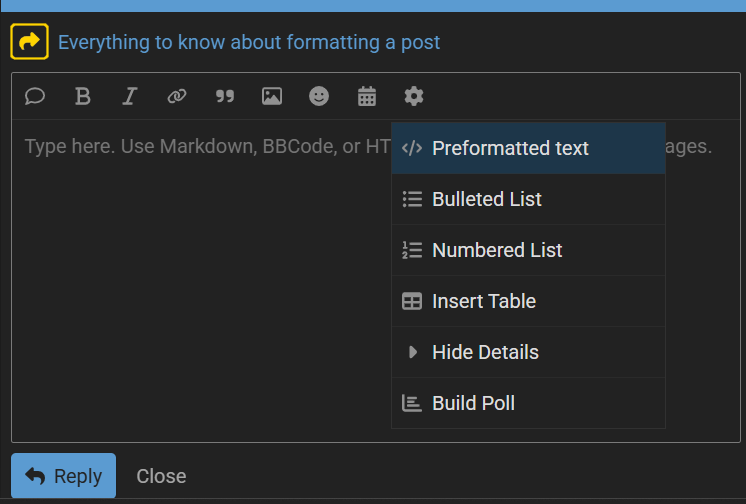
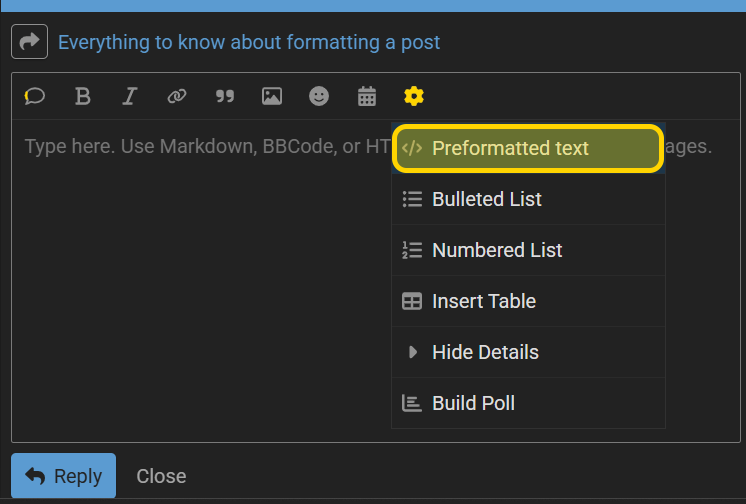
 Preformatted text
Wraps text within ```. See more info here
```
type or paste code here
```
type or paste code here
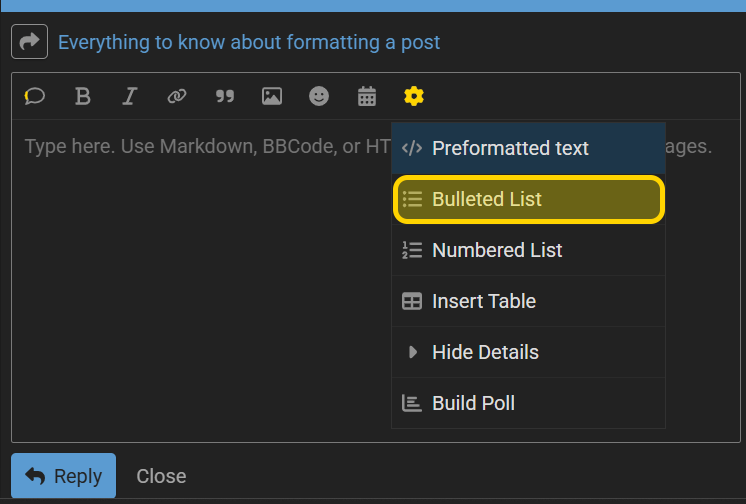
 Bulleted list
Inserts * at the beginning of each selected line.
* Line 1
* Line 2
* Line 3
- Line 1
- Line 2
- Line 3
Staggered bullet lists are possible. It requires 3 spaces preceding the bullet point. Staggering beyond 3 steps renders the bullet point as ▪
* Line 1
   * Line 2
      * Line 3
         * Line 4
             * Line 5
* Line 5
   * Line 6
- Line 1
- Line 2
- Line 3
- Line 4
- Line 5
- Line 4
- Line 3
- Line 2
- Line 5
- Line 6
Numbered Lists can be used in combination with Bulleted Lists
1. Line 1
2. Line 2
   - Line 3
        - Line 4
2. Line 4
   1. Line 5
      2. Line 6
- Line 1
- Line 2
- Line 3
- Line 4
- Line 3
- Line 4
- Line 5
2. Line 6
- Line 5
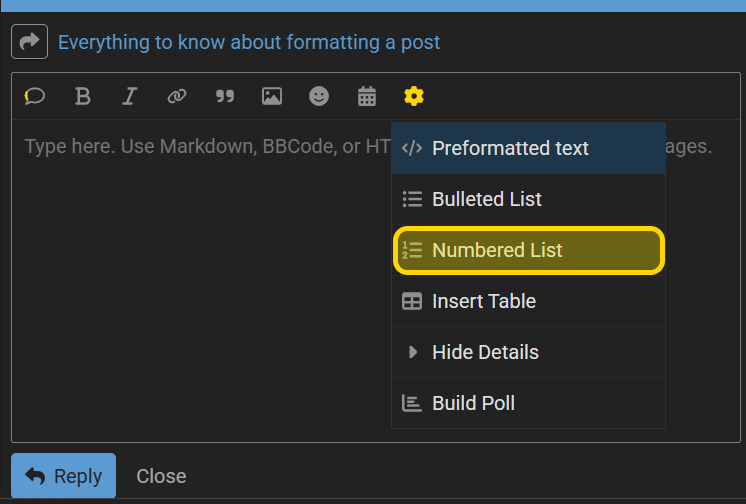
 Numbered list
Inserts #. at the beginning of each selected line. Numbering is sequential and automatic regardless of the number in front.
1. Line 1
2. Line 2
10. Line 3
- Line 1
- Line 2
- Line 3
Staggered number lists are possible. It requires 3 spaces preceding the number and the first staggered number to be '1'. Staggering beyond 2 steps is not rendered.
1. Line 1
2. Line 2
   3. Line 3
     4. Line 4
5. Line 5
   1. Line 6
      2. Line 7
         3. Line 8
- Line 1
- Line 2
3. Line 3
4. Line 4 - Line 5
- Line 6
2. Line 7
3. Line 8
- Line 6
Numbered Lists can be used in combination with Bulleted Lists
1. Line 1
2. Line 2
   - Line 3
        - Line 4
2. Line 4
   1. Line 5
      2. Line 6
- Line 1
- Line 2
- Line 3
- Line 4
- Line 3
- Line 4
- Line 5
2. Line 6
- Line 5
 Insert table
Opens the Table Builder
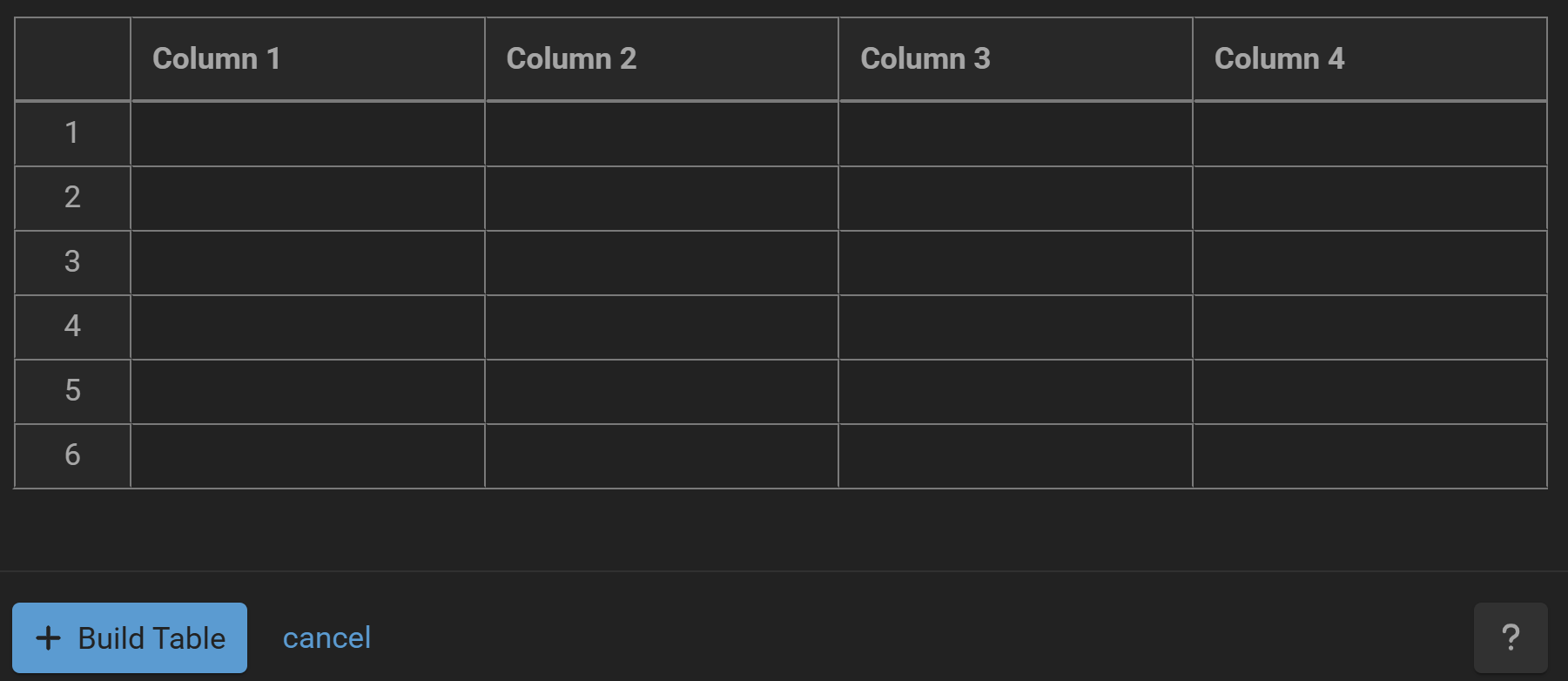
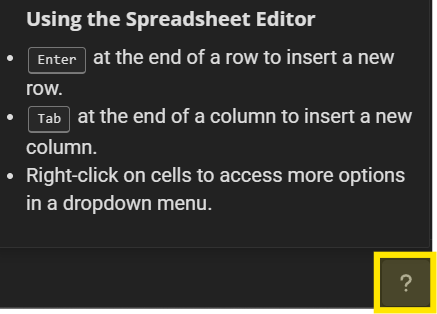
The instructions for use can be found by clicking the  icon on the bottom-right
Common Bugs
Table Duplication
- Editing a table whose some rows don't start with a pipe duplicate these rows - Bug - Discourse Meta
- Completely empty cells could also pose an issue
Empty Headers are automatically filled
[SOLUTION] Bug regarding empty header cells being filled when edited in Discourse table
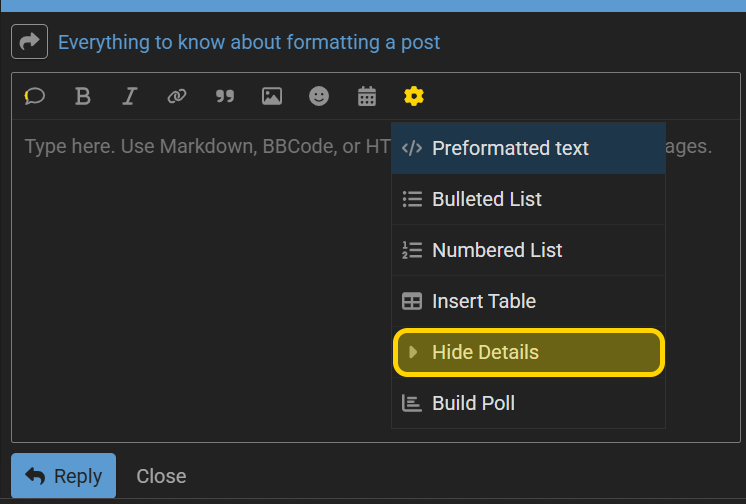
 Hide details
Wraps selected text in the [details] tag, which hides it behind a clickable summary. When a user clicks the summary, the hidden content expands. Clicking it again collapses it.
See more here
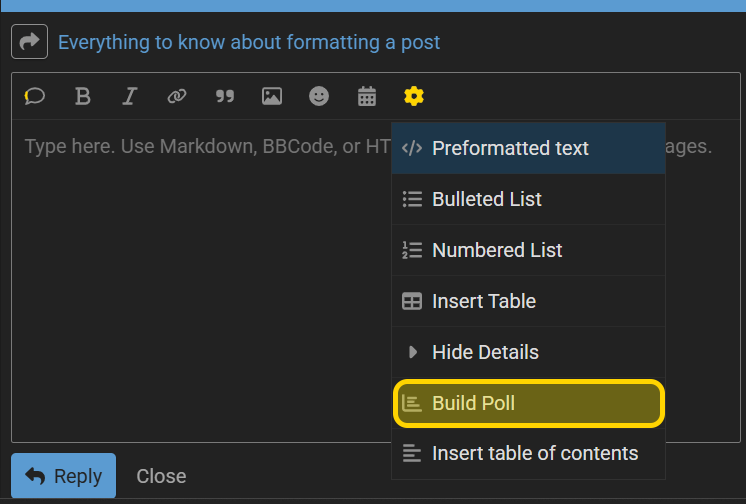
 Build poll
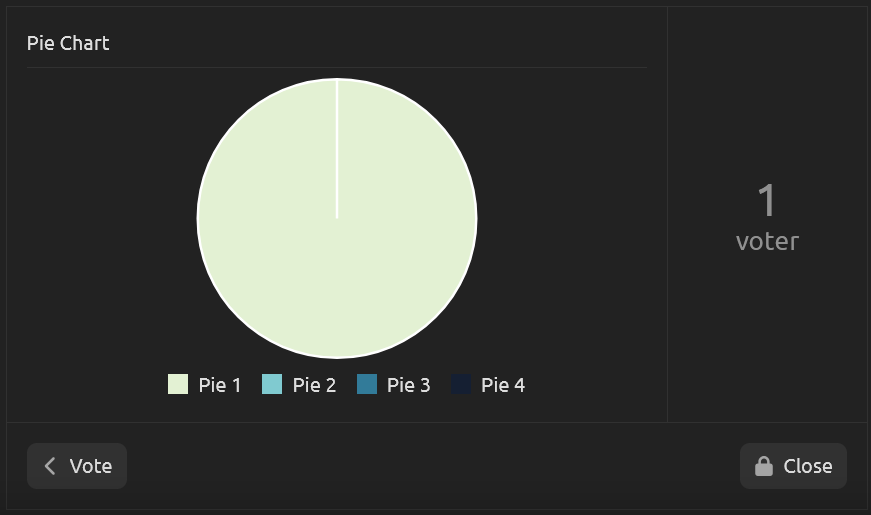
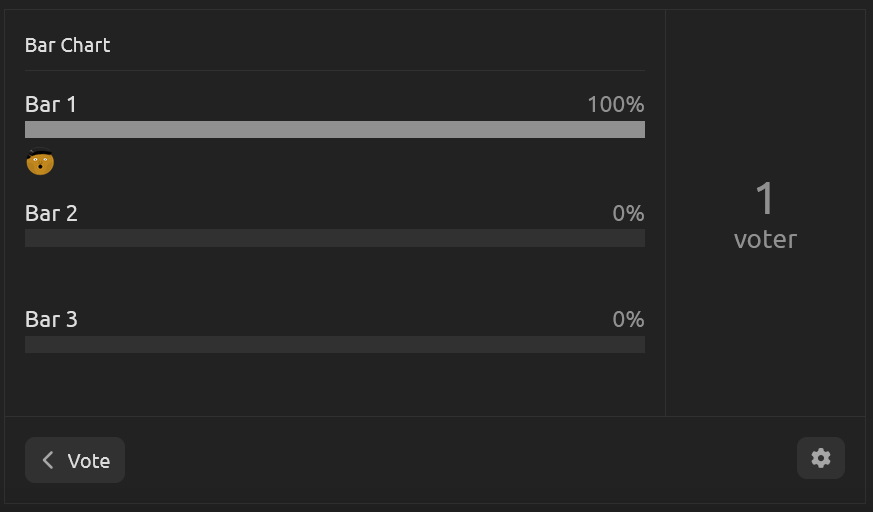
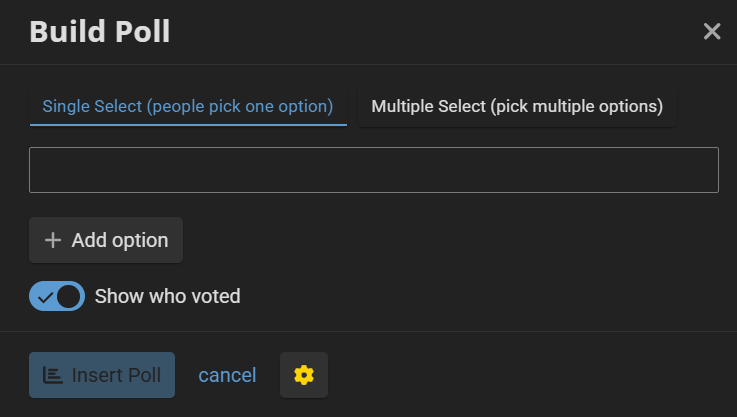
The forum has native poll support. Clicking the “Build Poll” option brings up the basic Build Poll menu. Notable settings include:
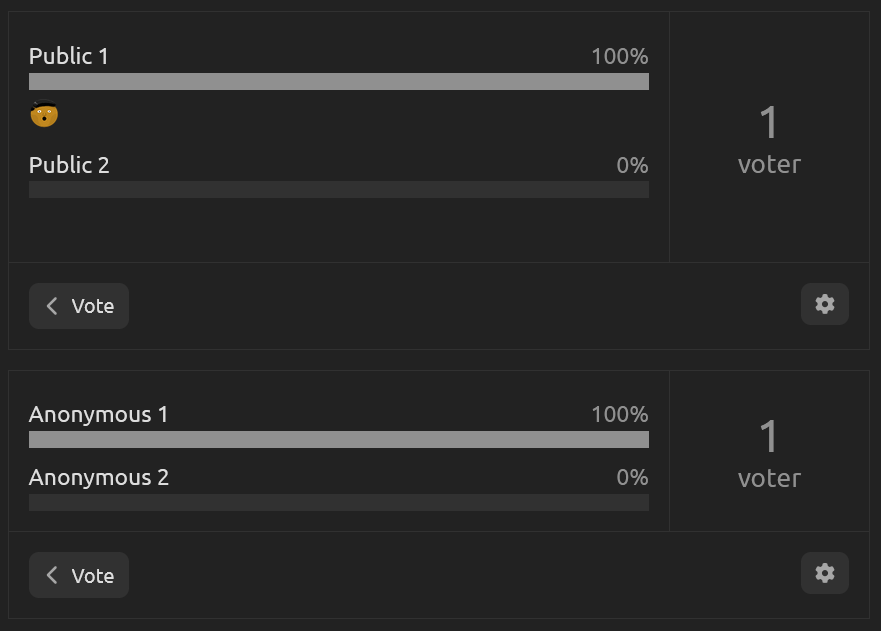
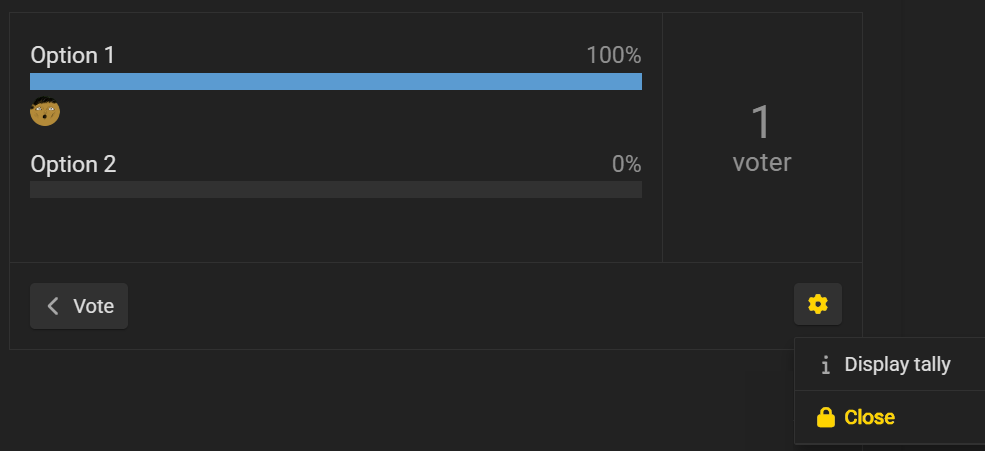
Manually Open/Close Poll
After creating a poll, the creator has the option to close and reopen the poll manually by opening its settings menu
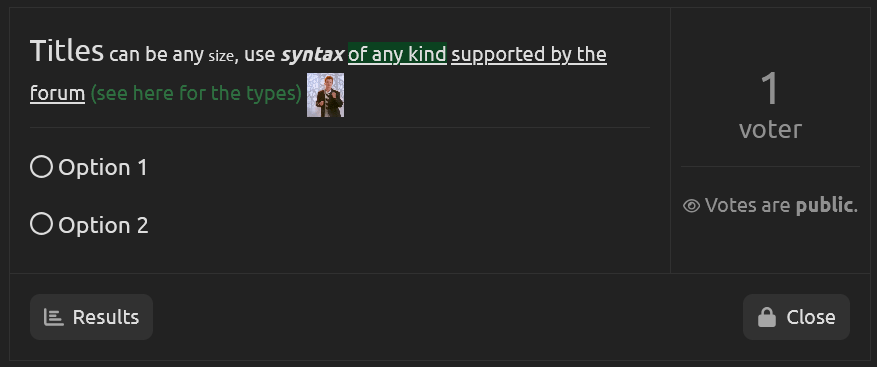
Advanced Options
Clicking the gear opens the advanced Build Poll menu. Notable settings include:
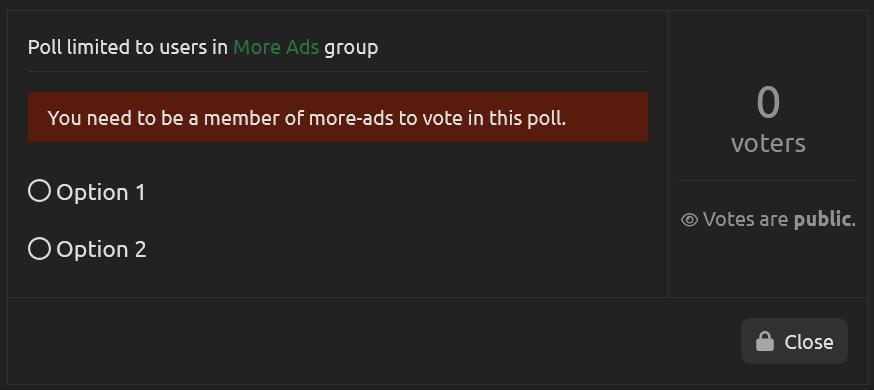
Limit voting to these groups
This option limits the users that can vote in the poll to users in specific group(s).
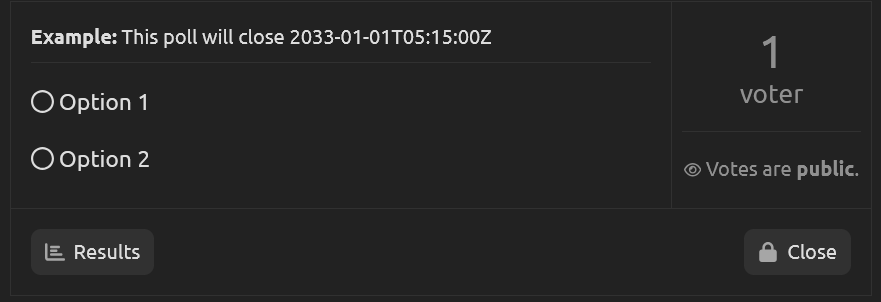
Automatically Close Poll
This option closes allows the scheduling of polls to close at specific dates and times, selectable in 15-minute increments.
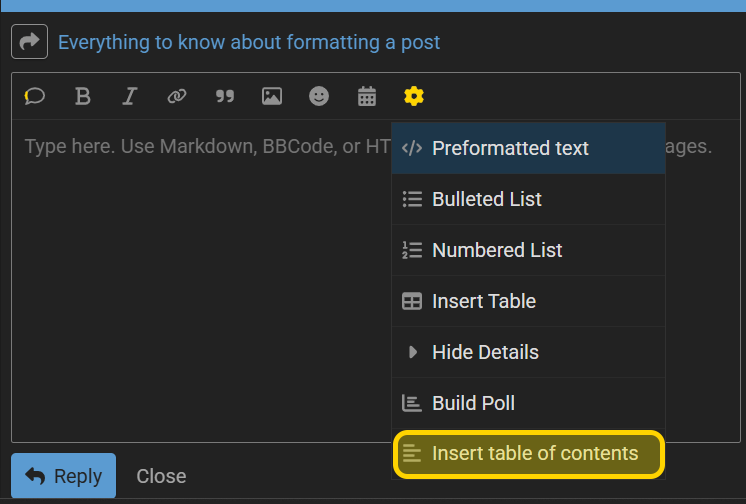
 Insert table of contents
Inserts <div data-theme-toc="true"> </div> at the position of text cursor.
This enables the Table of Contents for a topic post. All headings regardless of position relative to the inserted line appear in a collapsible element to the right of the post. Option is not available when replying.
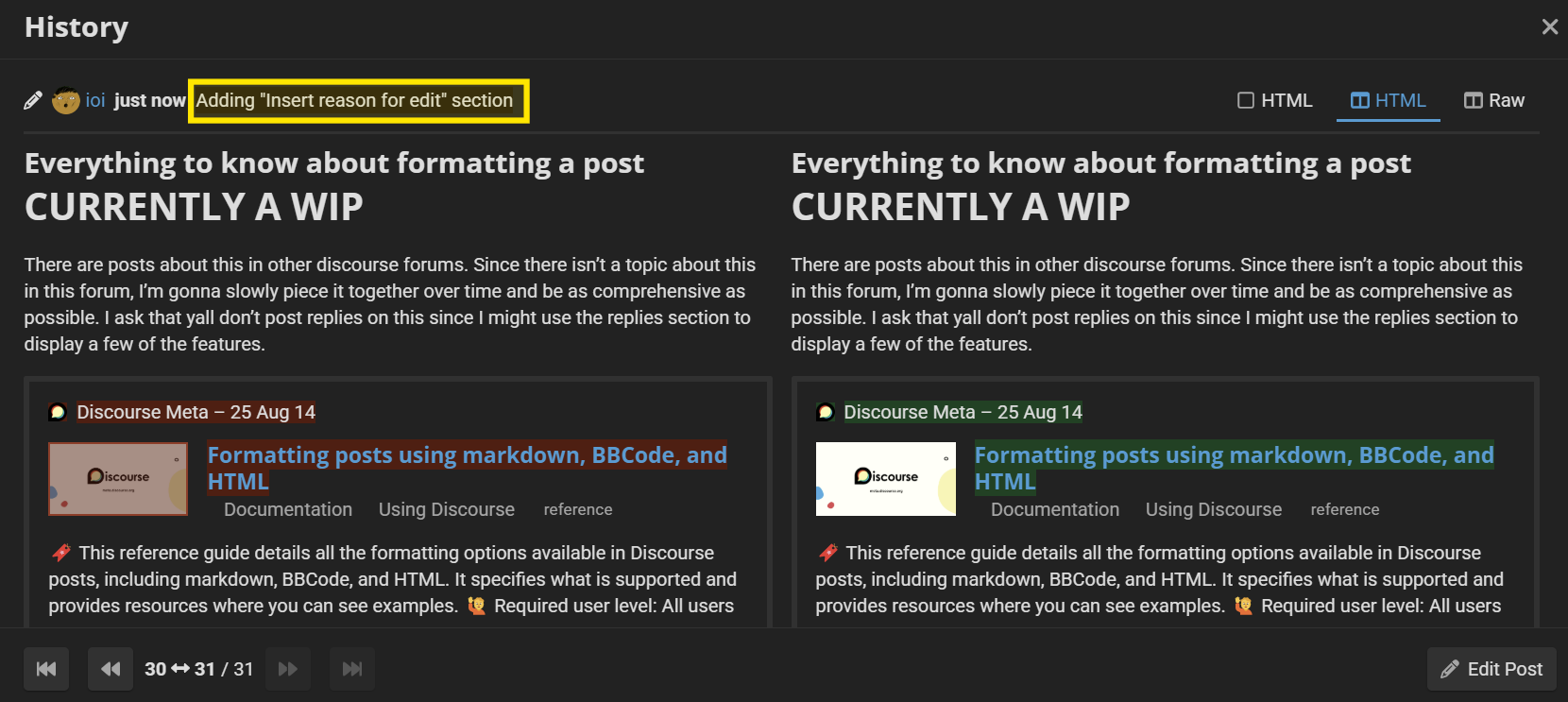
 Insert reason for edit

Adds a message to editing history when a post edit is saved. Useful for keeping track of edit history and/or when there are multiple collaborators in a wiki topic.
Formatting Table
This table is sorted alphabetically by the Format column.
| Key | |
|---|---|
 |
No formatting option |
 |
Formatting option disabled in this forum |
 |
No Rendered Result |
Link |
More info in the guide, won’t fit in the table |
Click to open table
| Format | Markdown | BBCode | HTML | Rendered Result |
|---|---|---|---|---|
| Audio | |
|
<audio src="audio.mp3" controls></audio> |
See Here |
| Blockquote | > Text |
|
<blockquote>Text</blockquote> |
Text |
| Bold | **Text** |
[b]Text[/b] |
<b>Text</b>, <strong>Text</strong> |
Text |
| Checklist | [] [X] |
|
|
|
| Date/Time | |
See Here | |
2025-05-22T04:00:00Z |
| Emoji | :EmojiName: |
|
Emoji directly |
 |
| Heading 1 | # Text |
|
<h1>Text</h1> |
Text |
| Hide Details | |
[details] |
<details> |
Displayed TextHidden Text |
| Hidden Text | |
|
[comment], <!-- Text --> |
See Here |
| Highlight | |
|
<mark>Text</mark> |
Text |
| Horizontal Rule | --- |
|
<hr> |
|
| Image |  |
[img]example.com[/img] |
<img src="https://example.com" alt="ImageName" width="200" height="100"> |
 |
| Italics | *Text* |
[i]Text[/i] |
<i>Text</i>, <em>Text</em> |
Text |
| Keybind | |
|
<kbd>Key</kbd> |
Ctrl |
| Large Text Size | |
|
<small>Text <small>Text</small></small> |
Text Text |
| Line Break | Natively supported | |
<br> |
Text Text Text Text |
| Link | [Display Text](example.com) |
[url]http://example.com[/url] |
<a href="https://example.com">Display Text</a> |
Display Text |
| List | * , 1. |
|
|
|
| Marked Delete | |
|
<del>Text</del> |
|
| Marked Insert | |
|
<ins>Text</ins> |
Text |
| Mentions | @username |
|
|
@ioi |
| Preformatted Text/Code | `Text` |
[code]Text[/code] |
<code>Text</code>, <pre>Text</pre> |
Text |
| Quote | |
[quote="username, post: PostNumber, topic: TopicNumber, full=true/false"] Quoted Text [/quote] |
|
See Here |
| Small Text Size | |
|
<big>Text</big> |
Text |
| Strikethrough | ~~Text~~ |
[s]Text[/s] |
<s>Text</s> |
|
| Structuring/Grouping | Natively supported | |
<div> |
|
| Superscript | |
|
Text<sup>Text</sup> |
Text Text |
| Subscript | |
|
Text<sub>Text</sub> |
Tex tText |
| Tables | See Here | |
See Here | |
| Underline | |
[u]Text[/u] |
|
Text |
| Video | https://www.youtube.com/.... |
|
<video src="video.mp4" controls></video> |
|
| |
Misc Info
Everything below (down to post 8) provides additional information that is linked from the sections above.
Hiding Details
BBCode
Note: Traditional BBCode parser will not read this
This is the simpler of the two to use, and the version used in the Formatting Options.
[details=Displayed Text]
Hidden Text
[/details]
It has one limitation in that the Displayed Text cannot be formatted at all.
See here for various limitations
[details=Normal Text]
Hidden Text
[/details]
Normal Text
Hidden Text
[details=**Bold Text**]
Hidden Text
[/details]
\*\*Bold Text\*\*
Hidden Text
[details="**Bold Text**"]
Hidden Text
[/details]
\*\*Bold Text\*\*
Hidden Text
[details=<b>BoldText</b>]
Hidden Text
[/details]
<b>BoldText</b>
Hidden Text
[details=[Linked text](example.com)]
Hidden Text
[details]
[details=Linked text]
Hidden Text
[/details]
HTML
This is more difficult to use as it requires more HTML tags and space to format something similarly to the BBCode.
<details>
<summary>Displayed Text</summary>

Hidden Text
</details>
This version of Hide Details does allow for formatting of Displayed Text.
See Implementation Examples
Importance of Line Spacing
<details><summary>Normal Text</summary>Hidden Text</details>
Displayed Text
Hidden Text<details><summary>Displayed Text</summary>**Bold Text**</details>
Displayed Text
**Bold Text**<details><summary>Displayed Text</summary>
**Bold Text**
</details>
Displayed Text
**Bold Text**<details><summary>Displayed Text</summary>
**Bold Text**
</details>
Displayed Text
Bold Text
<details><summary>**Bold Text**</summary>**Hidden Text**</details>
**Bold Text**
**Hidden Text**<details><summary>
**Bold Text**
</summary>**Hidden Text**</details>
Bold Text
**Hidden Text** Formatting Displayed Text
<details>
<summary><b>Bold Text</b></summary>
Hidden Text
</details>
Bold Text
Hidden Text<details>
<summary>
**Bold Text**
</summary>
Hidden Text
</details>
Bold Text
Hidden Text
<details>
<summary>

[Linked Text](example.com)
</summary>
Hidden Text
</details>
Hidden Text
<details>
<summary>
<a href="https://example.com">Linked Text</a>
</summary>
Hidden Text
</details>
Linked Text
Hidden TextHiding Text with HTML
HTML allows for users to hide text within the composer. Using the methods below, the HIDDEN TEXT will only be viewable when editing a post.
SINGLE LINE:
[comment]: <> (HIDDEN TEXT)

<!-- Hidden Text -->
MULTI-LINE:
<!---

HIDDEN
TEXT

-->
Date/Time with BBCode
Note: Traditional BBCode parser will not re ad this
Single Date:
[date=YYYY-MM-DD time=HH:MM:SS timezone="TZ Identifier" recurring="[interval].[unit]"]

Multidate:
[date-range from=YYYY-MM-DDTHH:MM:SS to=YYYY-MM-DDTHH:MM:SS timezone="TZ Identifier" recurring="[interval].[unit]"]
– YYYY-MM-DDTHH:MM:SS → [Date]T[Time on 24HR clock]
– TZ Identifier → List of names for timezones of countries, learn more here
– [interval].[unit] → Interval in counting numbers (1, 2, 3…), units of time (year, month, week, day)
- Examples
– Recurring anniversary date of this post’s creation 2025-05-13T16:18:00Z
– Nonrecurring date of this year’s summer solstice 2025-06-21T02:41:00Z
– Nonrecurring date range of the last 10 days of November 2025-11-21T05:00:00Z→2025-11-30T05:00:00Z
 Back to Guide






















 who going to read all of this
 .
.